
On Windows 7, ‘Desktop‘ directory is by default located at [systemdrive]usersloginidDesktop. If C: is system drive then it would be in c:usersloginnameDesktop.
For example, administrator’s desktop would be at C:usersadministratorDesktop
In case if there is less space available on C: drive we might want to move this folder to some other drive. Moreover it’s preferable to store My documents, My pictures, Desktop files on a non-system drive so that if we reinstall the OS we do not have to take backup of the data.
Now let’s see how we can change the physical location of Desktop folder.
- Open your folder (i.e c:usersyourloginid ). This can be opened by just clicking on the login name in the Start menu.
- Right click on Desktop folder
- Select Properties
- Click on ‘Location‘ tab
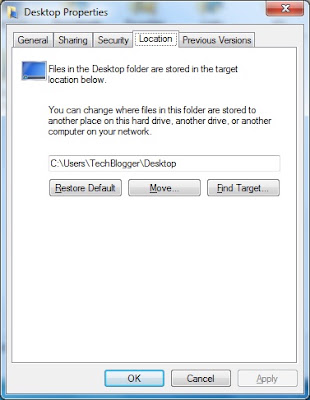
- Now enter the new location for the Desktop folder
- Click on Apply
- If the new location does not exist already it asks for confirmation to create the folder.

- Click on Yes
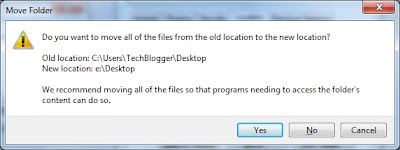
- Next it asks if you want to move all of the files from the old location to the new location. Select Yes.
- Next click on OK and close the Desktop Properties window.
and regs? are they changed now?
I did not get your question…
Registry key for desktop location is HKEY_CURRENT_USERSoftwareMicrosoftWindowsCurrentVersionExplorerUser Shell FoldersDesktop.
How can you revert back to original if you do not like this? The Desktop location tab is no longer available
You can revert back by editing the registry value 'Desktop' under the key "HKEY_CURRENT_USERSoftwareMicrosoftWindowsCurrentVersionExplorerUser Shell Folders"